These
tutorials assume you are already familiar with SDK (MOHRadient)
or similar and know how to create a basic room with
a light, platform etc. See (Basic room tutorial &
Basic lights tutorial). It’s also assumed that
you have read the documentation that was released with
the Editor.
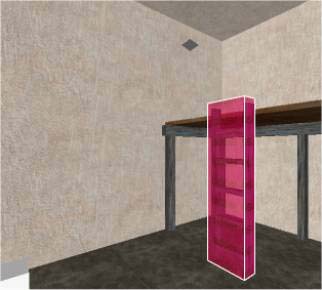
For this tutorial I have created a
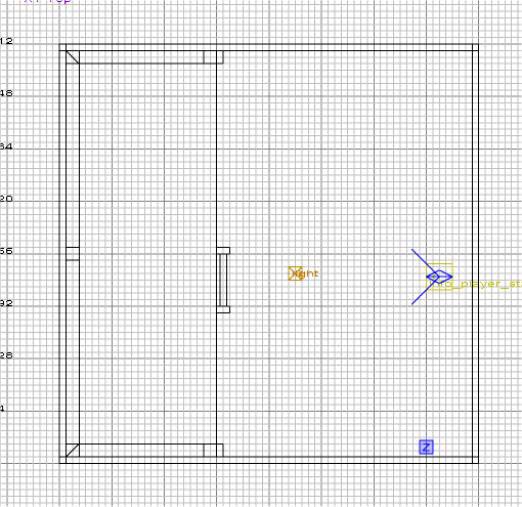
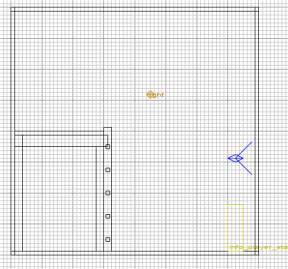
room (hollow box) with the dimensions of (approx: 512
x 512 x 512), which includes a platform about half way
up a wall, a ladder, a player start and a light. Use
any textures for now.
NOTE: A hollow box does not constitute
a room, you should never overlap brushes. The compiler
will report a ‘duplicate plane’ warning message.
See my tutorial on basic room design for more info.
Ok, that’s the easy bit. Now
for telling the editor/compiler where the ladder is
going to be.
We are going to be using a brush that
will cover the ladder, and then we are going to add
a COMMON texture and a Function in this case, FUNC_LADDER.
This basically tells the compiler where a ladder is
and how the player will interact with it in the world.
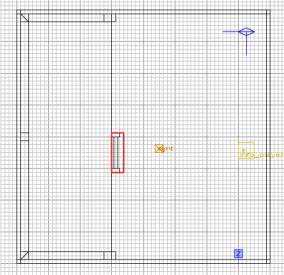
Right, select the 2D view XY TOP (Ctrl
+ Tab), over your ladder create a brush with a slight
overlap (See image below - left), but flush to back
of the ladder.
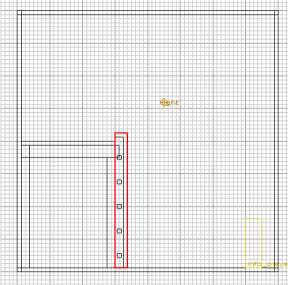
The next thing to do with this brush,
before making it a ladder, is to ensure that the brush
goes slightly higher than the proposed ladder. Most
people make the mistake of not giving the ladder function
enough world space, often meaning that a player cannot
get off at the other end. But don’t over do it!
(See image above – right).
Note I have given a slight overlap
at the front of the ladder. This helps the player to
get on the ladder easier. I tend to make the ladder
a few bits higher than the proposed platform, for purely
cosmetic reasons. It looks more realistic.
OK, let’s make it a ladder! The
fun bit! But first things first…..
This is the COMMON texture for the
Ladder. To get to these textures go to the Menu Bar,
selecting Textures. Scroll down until you see COMMON.
OK, hopefully you have now loaded
the COMMON textures. Whilst you have the brush selected,
find and left click on the Ladder texture. (See below).
Ok, nearly there! With the Brush selected,
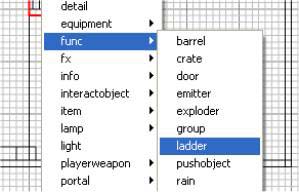
go to the XY TOP view, and in the 2D box right click
inside the brush. You will get a pop-up menu (See below).
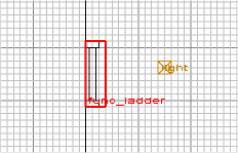
Select Func, and then Ladder. In your
2D view you should now see the following.
The brush has now turned into a Func_Ladder.
OK, lets not too excited, I’ve heard people mention
that sometimes it works and sometimes it doesn’t.
The reason for this is the orientation of the ladder.
OK, in my map to get on the ladder the Player needs
to face 180 degrees. So we need to tell the compiler
which way the Player needs to face in order to be able
to climb on the ladder.
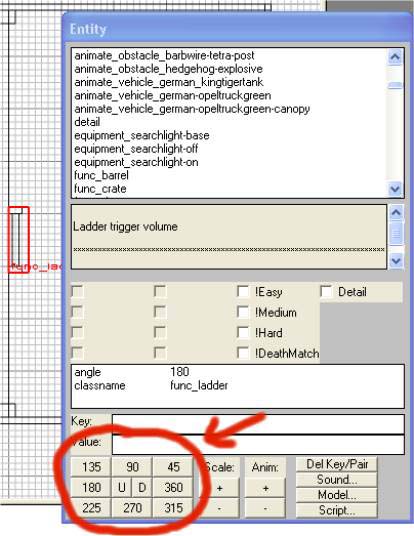
With the brush still selected, Press
‘N’ to bring up the Entity Window (See below)
Right, in the red-circled
area, click on 180. This has now told the Editor/Compiler
which way the play must face to be able to get onto
the Ladder. That’s it, you have created your first
ladder!!!
Press ‘N’, to close the
Entity Window. Then press ESC to deselect the brush.
Save the Map and go compile and test it!!