The language used to script in MOHAA is very similar to programming
in C++ or Java. This tutorial will try to demystify this scripting
language for beginners and advanced scripters alike. This tutorial
can be downloaded
in zipped html format here. It's also available in french, thanx to the exelent work of Tropheus
The file Script
Files.txt, supplied in the docs folder of the MOHRadiant installation.
My own experiences, in mapping, scripting an programming.
The infinite scripting wisdom of jv_map over at .MAP
( Creator of such wonderful things as the jv_bot
multiplayer BOT's ).
The language
The MOHAA scripting language is defined in the file Script
Files.txt that is shipped in the docs folder of the MOHRadiant
installation. The problem ( advantage? ) is that this definition
is very exact ( read mathematical ) and hard to understand for someone
without a degree in linguistics or programming language theory.
Another problem is that it is not very descriptive, and lacks examples.
And finally, it only describes part of the language. So I'm going
to try to fill in the blanks and explain this to you as clearly
as I can.
Basic mathematical operators
Programming and scripting languages are very mathematical in nature,
so lets start with the mathematical operators:
expr + expr
Adds 2 expressions. Example 6 + 2 results in the value 8
expr - expr
Subtracts 2 expressions. Example 6 - 2 results in the value
4
expr * expr
Multiplies 2 expressions. Example 6 * 2 results in the value
12
expr / expr
Divides 2 expressions. Example 6 / 2 results
in the value 3
expr % expr
Modulus 2 expressions ( Remainder after division by integer).
Example 4 % 2 results in the value 0, as you get "2
complete 2:s" out of 4, with nothing remaining. 3 %
6 is 3... 5 % 2 is 1... 5 % 4 is 1.
expr ++
Adds the value 1 to an expression. Example
6 ++ results in the value 7
expr --
Subtracts the value 1 from an expression. Example 6 --
results in the value 5
expr | expr
bitwise or (outputs integer)
expr ^ expr
bitwise exclusive or (outputs integer)
expr & expr
bitwise and (outputs integer)
These operators are used a lot, and can be nested into more complex
statements like: 4 * 2 + 5 % 2.
So... we wont get very far with just calculating 5 * 12 will we?
No, we need a place to store the value we calculated: Variables.
Variables
A variable is a name that can be used to store a value. Any object
in the game can have variables in its variable list. There are some
variables that is created by the game, or you can create your own
variables.
To use a predefined variable, you must know its name: there is a
predefined variable that is used by the exploder system ( exploder.scr
) called level.targets_to_destroy... lets use this as an example:
what is the value of level.targets_to_destroy + 1 ? Well... that
depends on what the value of level.targets_to_destroy is... if level.targets_to_destroy
has the value 1, then the expression evaluates to 2.
Now that you are aware of variables, I can tell you of the very
important assignment operator =. This operator lets you set
the value of a variable by doing like this:
var = expr
Assigns the value of the expression to the variable.
So you want to set the number of targets to destroy? No problem:
level.targets_to_destroy = 2
Done!
The really cool stuff will come when you start using more variables
and less actual numbers. Like "I want the roundlimit for my
map to be 2 minutes for every objective, and have a random number
of objectives between 2 and 5". No problem! If you can dream
it up you can probably script it up to!
You start to see how sweet this is now, right? But it gets even
more sweet.
Creating variables
This is easy: just name it, and it will exist. But you must name
it in an object, like:
local.index = 0
Check the section on Predefined objects
to find out what special objects are available. ( Usually you'll
use the local object, and sometimes the level object ).
Creating variables in the Radiant editor
To create variables in objects in the MOHRadiant editor, simply select
the object and enter the name and value of the variable you want in
the "Entity property box". There are some trix to tell the
scripting language how to use these variables:
$variable defines the key as a variable with data type string. #variable defines the key as a variable with data type integer
(I think). variable makes the game handle the key as a command for the
entity.
Maybe I can make it more understandable with a scripting example: $variable and #variable would be:
self.variable = "myvariable"
or
self.variable = 4
variable is used like this:
self variable"myvariable"
As 'variable' is not a valid command the latter results in an error
('failed execution of event 'variable'').
( Thanx to jv_map
for explaining these variable naming standards to me )
Control statements
Sometimes you want some parts of the script to be skipped under
some circumstances. Sometimes you want a part of the script to be
repeated a number of times. This can be achieved with the four control
statements:
if
IF a condition is met: do this stuff
while
WHILE a condition is met: repeat this stuff
for
FOR as long as a condition is met: repeat this stuff
switch
SWITCH between this stuff depending on the condition
But we cant really understand these control statements if we don't
first understand how to define a condition:
All control statements ( except switch ) act on true / false (
binary ) conditions. This is really 1 & 0:s, but there is no
such thing as a maybe here: Its yes or no, true or false, good or
evil, axis or allies... nothing in between. So lets take a look
at the binary operators:
expr == expr
Equality, if the 2 expressions has equal values: output
1, else 0
expr != expr
Inequality, if the 2 expressions has different values: output
1, else 0
expr < expr
Less than, if the first expression has a smaller value than
the last expression: output 1, else 0
expr > expr
Greater than, if the first expression has a bigger value
than the last expression: output 1, else 0
expr <= expr
Less than or equal, if the first expression has a smaller
value, or an equal value to the last expression: output 1,
else 0
expr >= expr
Greater than or equal, if the first expression has a bigger
value, or an equal value to the last expression: output 1,
else 0
expr && expr
Logical and, if both expressions are true (
1 ): output 1, else 0
expr || expr
Logical or, if at least one of the expressions is true (
1 ): output 1, else 0
...OK! Now we are equipped to handle conditional statements!
The if statement
There are two types of if statements: The if, and the if
else.
IF the expression within the parentheses is true ( evaluates to
1 ), execute the statements within the "curly brackets ( the
{ and } ).
if (expr) {
	statement
	...
	statement
}
IF the expression within the parentheses is true ( evaluates to 1
), execute the statements within the "curly brackets" following
the if clause, ELSE execute the statements within the "curly
brackets" following the else clause.
if (level.targets_destroyed < 1)
{
	teamwin allies
}
else
{
	iprintlnbold_noloc "There are remaining objectives!"
}
The while statement
The while statement tests a condition, if it is true ( 1 ) the
wile statements code is executed and then the condition is tested
again... if it is still true, the code is executed again... until
the condition is not true anymore:
At the start of execution of this entire statement, statement1
is executed. At the start of a cycle of the loop the expression
expr is evaluated, and while the expression evaluates to true (
1 ) the statement(s) within the "curly brackets" following
the for clause are executed. At the end of each cycle of the loop,
statement2 is executed.
This sounds rather complicated, but if I show you an example of
how it is usually used, it will become clear. Notice how this example
is identical in function to the while example above:
This conditional statement differs a bit from the others, as it
does not take a binary value as the argument ( it can, but it does
not have to ), instead it converts anything it gets into a text
string. This is how it looks:
Its not as scary as it looks, but there are some tricky bits in
the switch statement. Lets see an example of its use before I explain
it:
switch ( local.gameType )
{
	NIL:
		local.gameTypeText = "ERROR: NOT INITIALIZED!"
		break
	case 1:
		local.gameTypeText = "Free For All"
		break
	case 2:
		local.gameTypeText = "Team Death Match"
		break
	case 3:
		local.gameTypeText = "Round Based Death Match"
		break
	case 4:
		local.gameTypeText = "Objective"
		break
	default:
		local.gameTypeText = "Unknown or incorrect"
		break
}
So this is how it works: First the value of the switch argument
is evaluated ( local.gameType ). Then the cases are searched one
by one. Say local.gameType has the value 2... case 1.. no, case
2 yep: execute from there.
So why the breaks everywhere? Well, the switch statement will execute
from where it finds a matching case, so if you remove all breaks
from the switch statement above, and the local.gameType variable
is 3, the local.gameTypeText variable will be set to "Round Based
Death Match (RDM)", then immediately overwritten with "Objective
(OBJ)", then overwritten again with "Unknown or incorrect". This
is sometime the behavior you want but if not, DON'T FORGET TO END
THE CASES WITH BREAK.
The targetname operator
You have probably seen words starting with $ lots of time in scripts.
The definition is: The targetname operator $ converts a string
to the object with targetname equal to that string. Not very enlightening? Maybe not, but here is how you use it:
Lets say you have a model in your map that you want to remove or
change in some other way in the game. How do you access it in the
script? You give it a key / value pair of targetname
/ someGoodName. After you've done this, you can access the
object with $someGoodName in the script. Then you can do
stuff like: $someGoodName hide or any other in-game scripting
you like.
Arrays
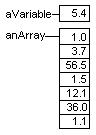
Arrays are collections of variables. If you imagine a variable
and an array variable like labeled boxes with their contents inside
the box like this:
Then you can access the variable aVariable by simply writing: aVariable.
But what about the array? Well, if you want to refer to the complete
array, you just write: anArray... OK... but you want to see what
is inside that array, the values, so how do you do that? You do
it like this:
anArray[anIndex]
Where anIndex is the index number of the "box" you want
to "look inside". The first box has index 1, the next
2, then 3, and so on...
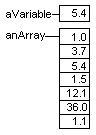
So: anArray[2] equals 3.7
and anArray[3] = aVariable
results in:
Creating an array
Constant arrays:
Created like this:
local.n = hello::world::this::is::a::test::123
And can be used like this:
println local.n[1] // prints hello
println local.n[7] // prints 123
println local.n[8] // results in Script Error: const array index
'8' out of range
Hash table arrays:
Uninitialized entries evaluate to NIL. Any new entry can be set.
Targetname arrays:
Created by the $ targetname operator if more than one entity exists
for that targetname.
For example, $player is an array if more than one player is in the
game.
Multidimensional arrays
So can you have an array of arrays? No problem! They are called
multidimensional arrays, and they are basically arrays that contains
more arrays. If a standard ( 1-dimensional ) array could de imagined
like the line of boxes, then a 2 dimensional array is like your
computer screen... to define a point on your screen you use 2 coordinates,
right? The same with a 2-dimensional array, you just add another
index like this:
anotherArray[1][4] would refer to the forth element of the
first array.
Add another dimension and you get 3D coordinates in space like
this:
anotherArray[1][4][2] would refer to the second element
of the forth array of the first array.
This is confusing enough... you will seldom use these kinds of
arrays. But you can if you want to impress your fellow scripters
with incomprehensible gibberish.
Array Examples
println local.n[10] // prints the element at position 10 of the
local.n array
local.n[1][3] = 10 // sets the element at position (1, 3) of the
local.n array equal to 10 (Hash table array)
local.n = hello::world::this::is::a::test::123 // constant array
println local.n[1] // prints hello
println local.n[7] // prints 123
println local.n[8] // results in Script Error: const array index
'8' out of range
for (local.n = 1; local.n <= 10; local.n++)
{ // print out element in game.stats array at position game.stats_name[local.n]
println game.stats[game.stats_name[local.n]]
}
local.a = (a::b)::c
println local.a[1][1] // prints a
println local.a[1][2] // prints b
println local.a[2] // prints c
Vectors
Vectors ( or coordinates ) are definitions of a point in space,
like the players position in the game. They are arrays of 3 numbers
( this is, after all, a 3D game ).
Vector Examples
Vectors are accessed like arrays in the indices 0, 1, 2.
A vector could be set like
local.my_vector = (10 -2 60.1)
Then this vector could be accessed like:
println local.my_vector[2]
which would print 60.1 to the console.
Example
-------
$player.origin += (5 6 7) // offset the player's origin by (5 6
7).
Note
Due to a parsing deficiency, vectors like (-1 2 3) should be
written ( -1 2 3). That is, a space must be between the "("
and the "-".
Methods
You can ( and should ) separate out reusable areas of code into
separate units. For example: if you made a working elevator, the
code will be a lot easier to make ( and for others to understand
) if the elevator code for going up is separated from the code to
initialize the elevator or the code to go down.
A method looks like this:
my_method:
	for ( local.index =5; local.index < 20 ; local.index ++ )
	{
		iprintlnbold_noloc "Bla nr. " + local.index
		wait 2
	}
end
The my_method: line sets the method label of the method. This is
later used to execute the method from another location.
When called, the method will execute line by line until the end
is reached. Use methods for code that will be used many times at
multiple places, or just as a way to divide your code into smaller
parts that is easier to understand by itself...
Take a look at the Threads section to see
how the methods are called. Threads an methods are closely connected
as you always start a new thread to execute a method.
Say you want to control two ( or more! ) elevators in your map...
you don't want to duplicate the "going up" code once for
every elevator ( maybe for two elevators, but imagine a system of
elevators ). Code reuse lets you minimize the code mass and thereby
minimizing the risk for errors, and the work of finding errors that
has entered the code. So we want to tell the method: "Do the
same code as usual, but do it to this elevator this time ( next
time it may be another elevator, but still the same code ).
So here is how we send parameters to a method:
instead of:
going_up:
	// Only one elevator
	$an_elevator moveto $an_elevator.top
	$an_elevator playsound elevator_run
	$an_elevator waitmove
end
We write it like this:
going_up local.an_elevator:
	// With any elevator
	local.an_elevator moveto local.an_elevator.top
	local.an_elevator playsound elevator_run
	local.an_elevator waitmove
end
This way the same code can be used for any number of elevators
in your map. You are not limited to only one parameter, just add
more variables to hold more parameters... not sure how many parameters
will be sent? Send an array of parameters! Whoopee! :-)
Threads
Multiple parts of scripts may execute at the same time. This is
made possible by the use of threads. Say you want a print on screen
every minute to remind the players that time is running out... this
could be done with the following code:
...it WILL work if you put it in the main method, but if you wanted
anything else to be timed like this ( like an air raid ), the code
would become ever more complex... so instead we put the code in
a different method and let a separate thread execute the code. The
new method looks like this:
The two scripts for your map ( MY_MAP_NAME.scr and MY_MAP_NAME_precache.scr
) are started automatically, if they exist. More exactly: the main
method of your map script and all of your precache script is executed
by automatically started threads. You have no control over this
( other than not making these files ).
Also: Scripts in the anim directory are executed to carry out animation
behavior of AI characters. Which script is executed is determined
by internal AI state or scripts such as global/shoot.scr.
Manual thread start
A complete manual thread starting command looks like this:
thread
sets the self object to .
This command is optional, and if it is left out the new thread will
receive the same self object as the thread that created it.
This is the method that is to be executed.
If the method is located in the same script file, it will just be
the name of the method, like this:
thread my_method_name
Or if the method ( bomb_thinker ) is located in another file (
global/obj_dm.scr ), it will look like this:
thread global/obj_dm.scr::bomb_thinker
There is a variant on this last call. You can call the main method
( only the main method! ) of a script file by just naming the file
as method label, like this:
thread global/exploder.scr
...this is equal to writing:
thread global/exploder.scr::main
Passing information to a threads method
Using the elevator up method example above,
you can pass a parameter ( or more, but in the example: only one,
as defined in the method definition ) into the method of a thread
at thread creation time like this:
thread going_up $some_boring_elevator
...now the going_up method that is executed in the new thread,
can access the elevator you sent it.
Waiting for a thread to complete its
execution
If for some reason you don't want to continue executing the current
thread until the one you just started ends: replace the thread
command with waittread, like this:
waitthread my_method_name
This way, execution of the current thread will not continue until
the new thread has completed. Be sure to know what you are doing
before using this... because as long as my_method_name does
not complete, the calling thread will go nowhere...
The exec command
The exec command is very similar to the thread command.
The first difference is that it must be called with the fully qualified
script file name, like this:
exec maps/obj/my_script_name.scr::my_method_name
...and it is most often used to just execute scripts, like this
well used example:
exec global/DMprecache.scr
There is also a waitexec command, that differs a bit from
the waitthread command in that it waits until all the threads
in the threadgroup have terminated, until ending its wait.
Remember thread groups are a bit weird. In
most cases, a new thread is part of a separate thread group. A thread
only belongs to the parent thread group if it's in the same file
and self is not defined (equal to self of parent thread).
Example:
$myobject waitexec ::mythread

mythread:
thread myotherthreada
self thread myotherthreadb
end

myotherthreada:
wait 5
end

myotherthreadb:
wait 10
end
In this example, myotherthreada belongs to the same thread group
as mythread, but myotherthreadb has its own thread group (since
it has 'self' in front of the call). Therefore the waitexec line
will only wait till myotherthreada is finished.
maps/MY_MAP_NAME.scr ( or in the maps/dm or maps/obj folder )
A level script is associated with each map, and is loaded and started
at the start of that map (and not for subsequent starts from a saved
game). This script is used for triggering all map related dynamic
objects such as doors, elevators, AI, etc. maps/mapname.scr corresponds
to maps/mapname.bsp. A level script is optional.
maps/MY_MAP_NAME_precache.scr ( or in the maps/dm or maps/obj
folder )
A level precache script is associated with each map, and is loaded
and started whenever the map is loaded (even from a saved game).
This script is used for precaching map specific resources. Maps/mapname_precache.scr
corresponds to maps/mapname.bsp. A level precache script is optional.
Scripts in the anim directory
...are executed to carry out animation behavior of AI characters.
Which script is executed is determined by internal AI state or scripts
such as global/shoot.scr.
Predefined objects
These object exist at all times and can be very helpful in your
scripting. Look in the file g_allclasses.html
in the docs folder of your MOHRadiant installation for a complete
definition of these objects:
game
Refers to the unique game object which maintains its state across
levels. Only primitive values (integers/floats/strings/vectors)
will persist across levels
level
Refers to the unique level object which maintains its state for
the duration of a level.
local
Refers to the thread executing the current command.
parm
Refers to the unique parm object which can be used to pass parameters
to new threads.
Note that any use of this variable could be coded "better"
by using parameters in the creation of new threads.
self
Refers to the object that the thread is processing for. This object
is the same for all threads in a group of threads.
group
Refers to the object representing the group of threads the thread
executing the current command belongs to.
The self object
There is a special object called "self".
The "self" object has its value set at the creation of
a group of threads. The following are some such situations:
Automatically started scripts
self is NULL for level scripts. Self is the character for animation
scripts.
Command: thread label
Since the new thread has the same group as the original thread,
self in the new thread is equal to self in the original thread.
Command: object thread label
self in the new thread is set equal to object.
Event threads
If a thread is initiated in response to an event of an object,
then self is set equal to this object.
Operator predecence
All operators are executed in a special order, as some have predecence
over others.
The operators are listed in order of evaluation priority, highest
first:
* / %
+ -
< > <= >=
== !=

&
^
|
&&
||
These predecence rules will govern how complex statement are evaluated.
Example:
5 + 3 * 2 = 11
First 3 * 2 is evaluated, because * has a higher priority. Then
the result is added to 5.
What if you really meant the result to be 16? Well, you can use
parentheses to change operator evaluation like this:
( 5 + 3 ) * 2 = 16
Casting
You can convert between the types of the values you use in scripting.
This by your direct order or automatically ( and sometimes when
you least expect it ).
Automatic casting
If a parameter in a statement is required to be of some type, then
an automatic cast will be attempted.
Manual casting
By writing one of the following keywords in front of a value, a
cast will be attempted:
int
float
string
You can cast in any way between these values, but take caution.
Examples of manual casting
println ( int 3.5 ) will print 3 ( the remainder is cut
of in the cast ).
println ( float "2" ) will print 2.000 ( a float
has 3 decimals precision ).
println ( string 3.5 ) will print 3.500 ( remember, 3.5
is a float and as such has 3 decimals precision... so the result
will not be 3.5 ).
println ( float "thirtysomething" ) will print 0.000
( the conversion to a number will fail, yielding a 0 value... that
is then converted to a float value of 0.000 ).
Strings
Strings differ from the other types in a lot of ways.
Characters of a string are accessed by the [] array operator. Indexing
starts at 0.
For example, "abc"[2] evaluates to the string "c".
There is no character type, so characters are just strings of length
1.
References
Here is a list of reference materials that you will find useful
after you learned the basic skill of scripting:
Explains what commands can be called on the common game objects,
like: Actor, Animate, Entity, ScriptSlave, ScriptThread, Sentient,
Trigger and World. Shipped with the original MOHRadiant in the
docs folder.
A similar document to this one. Contains less examples and
is harder to understand ( that's why I wrote this document ).
Some concepts are left out entirely, but it taught me basic
scripting. Shipped with the original MOHRadiant in the docs
folder.
Appendixes
Here are the core data appendixes attached to this document.